02 Creating the Control File
Source:vignettes/articles/02_Control_File_example.Rmd
02_Control_File_example.RmdAutoSpectral v1.5.0+ introduces a new automated spectral extraction pipeline. If you are using
get.spectra.automated()— which is the recommended approach for most users — this article describes everything you need. The legacy pipeline (define.flow.control()→clean.controls()→get.fluorophore.spectra()) is still available; for gating-specific columns (gate.name,gate.define,large.gate,is.viability) used only by that pipeline, see the Full Workflow and Gating articles.
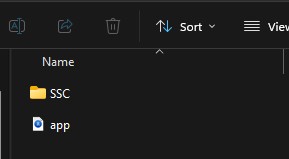
Shiny app: There is an interactive app you can use to create your control file. Download it from AutoSpectral App and place
app.rone level above the folder containing your single-stained control files:
App location
In this article we cover how to create a control file, which is an essential first step in running AutoSpectral. The control file is a specifically formatted CSV spreadsheet that tells AutoSpectral what each of your single-stained control FCS files contains. AutoSpectral can fill in much of the information automatically from the file names; you then review and complete it before running the extraction.
library(AutoSpectral)
#> AutoSpectralRcpp detected: using Rcpp-accelerated readFCS and writeFCS.
Setting up
To start, load the parameters for your cytometer. In this example we use the Cytek Aurora with the example dataset from Mendeley Data.
asp <- get.autospectral.param(cytometer = "aurora")Point AutoSpectral to the folder that contains only your single-stained control FCS files.
control.dir <- "~/AutoSpectral_data/Aurora_example/Aurora_controls"Creating the draft control file
create.control.file(control.dir, asp)This creates a CSV file (fcs_control_file.csv by
default) that lists every FCS file found in control.dir.
Running create.control.file() again will produce a numbered
copy (fcs_control_file_1.csv, etc.) rather than overwriting
your edited file.
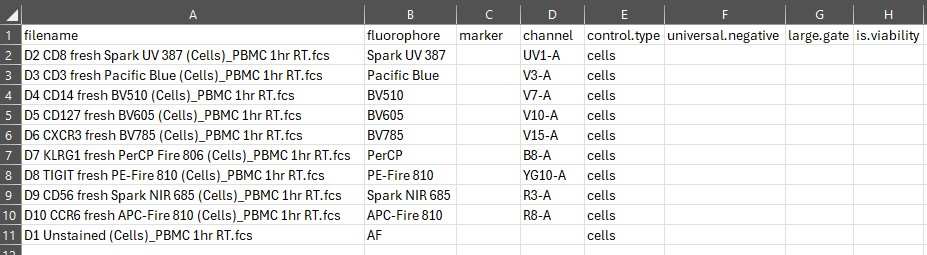
The initial file looks like this:
Completing the control file
Open the CSV in a spreadsheet program (Excel, LibreOffice Calc, etc.) and work through each column.
filename
One row per FCS file in control.dir. If this column is
empty, you have probably typed the directory path incorrectly.
fluorophore
AutoSpectral searches the fluorophore
database for a match based on the FCS file name. If it finds one,
the canonical name is filled in. If it cannot find a match you will see
No Match, which must be replaced — it is
an error that will prevent the pipeline from running.
Whatever you write here becomes the parameter name in the unmixed FCS file and in all plots, so choose the name you actually want.
The unstained cell control should have AF in this
column. AutoSpectral fills this in automatically for files whose names
contain “Unstained”. Do not change AF to anything else.
If you have an unstained bead control, its fluorophore should be
Negative.
Duplicate fluorophore names are an error — each row must have a
unique name. If you have both a bead and a cell control for the same
fluorophore, give them distinct names (e.g., PE and
PE beads) and decide which spectrum to use for unmixing.
See article
02b for guidance on mixed bead/cell setups.
marker
The biological target of the antibody (e.g., CD4,
CD8, CD45). AutoSpectral will attempt to fill
this in from the FCS file names using the marker
database. The AF and Negative rows do not
require a marker entry.
channel
The peak detection channel for the fluorophore (e.g.,
V8-A, B4-A). AutoSpectral fills this in from
the database when the fluorophore is recognised.
In the automated pipeline
(get.spectra.automated()), the channel column
is used as the expected peak during QC — if the empirically derived peak
channel differs, the QC step will flag it and optionally refine the
spectrum using RLM. If you leave channel blank for a
recognised fluorophore, check.control.file() will issue a
warning (not an error) and the automated pipeline will
derive the peak empirically. You can still proceed, but providing the
correct channel gives better QC feedback.
If your fluorophore is not in the database, look up the peak channel
in a spectral viewer such as Cytek
Cloud or BD
Spectrum Viewer, then confirm the exact channel name against the cytometer
database. The AF and Negative rows do not
require a channel entry.
control.type
Enter either cells or beads (lower case)
for each row. AutoSpectral parses this from the file name for Aurora
Reference Group exports; for other platforms you will need to fill it in
manually.
- The
AF(unstained cell) row must becells. This is validated bycheck.control.file(). - Bead and cell controls are handled differently during spectral extraction: beads do not undergo autofluorescence-based filtering, while cells do. Getting this wrong will degrade your spectra.
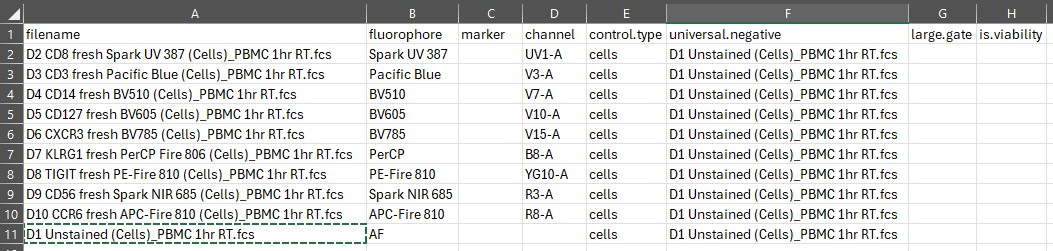
universal.negative
Copy and paste the filename of the matching
unstained sample for each row. The unstained sample paired with a cell
control must itself be a cell control
(control.type = cells), and vice versa for beads. A
mismatch is flagged as an error by
check.control.file().
The AF row should list itself as its own universal
negative.
Using a universal negative is strongly recommended. It allows AutoSpectral to perform scatter-matched background subtraction: for each positive event in a single-stained control, the nearest matching events in the unstained sample are subtracted, removing the autofluorescent background specific to that cell type. Omitting this column is only a warning, not an error, but spectra quality will be lower.
Gating columns (large.gate, gate.name,
gate.define, is.viability)
These columns are only used by the legacy pipeline
(define.flow.control()). If you are using
get.spectra.automated(), you can leave them blank — they
are present in the CSV because create.control.file() always
generates them, but check.control.file() will not raise
errors about them in automated mode (legacy = FALSE, which
is the default). See the Full
Workflow and Gating
articles if you need to use the legacy pipeline.
Checking the control file
Once you have filled in the mandatory columns, run:
control.file <- "fcs_control_file.csv"
check.control.file(control.dir, control.file, asp)
This reads every FCS file in control.dir and
cross-checks the metadata in the CSV against the actual file headers. It
returns a dataframe of issues, categorised as either
errors (must be fixed before proceeding) or
warnings (worth reviewing, but will not stop the
pipeline).
Common errors include:
-
No Matchstill present in thefluorophorecolumn - Duplicate fluorophore names
- Missing or invalid
control.type - Universal negative not found in the
filenamecolumn, orcontrol.typemismatch between a sample and its universal negative - Missing
AFcontrol - Fewer than 1,000 events in any file (hard error); fewer than 5,000 (warning)
If check.control.file() returns an empty dataframe and
prints a green confirmation message, your control file is ready to
use.
# The check is called internally by get.spectra.automated(), but it is good
# practice to run it explicitly first so that errors are easy to interpret.
issues <- check.control.file(control.dir, control.file, asp)
When the check passes, proceed to spectral extraction:
spectra <- get.spectra.automated(
  control.dir      = control.dir,
  control.def.file = control.file,
  asp              = asp
)
For a full walkthrough of what happens next, see the Automated Spectral Workflow article.
For panels that mix bead and cell controls, use multiple universal negatives, or contain fluorophores not in the database, see the next article: 02b: Control File — Complex Panels.